Catalyst Screen Collator
User Guide
Step 1: Login to Catalyst Design
First, login to Catalyst Design platform.

Step 2: Find Your Course
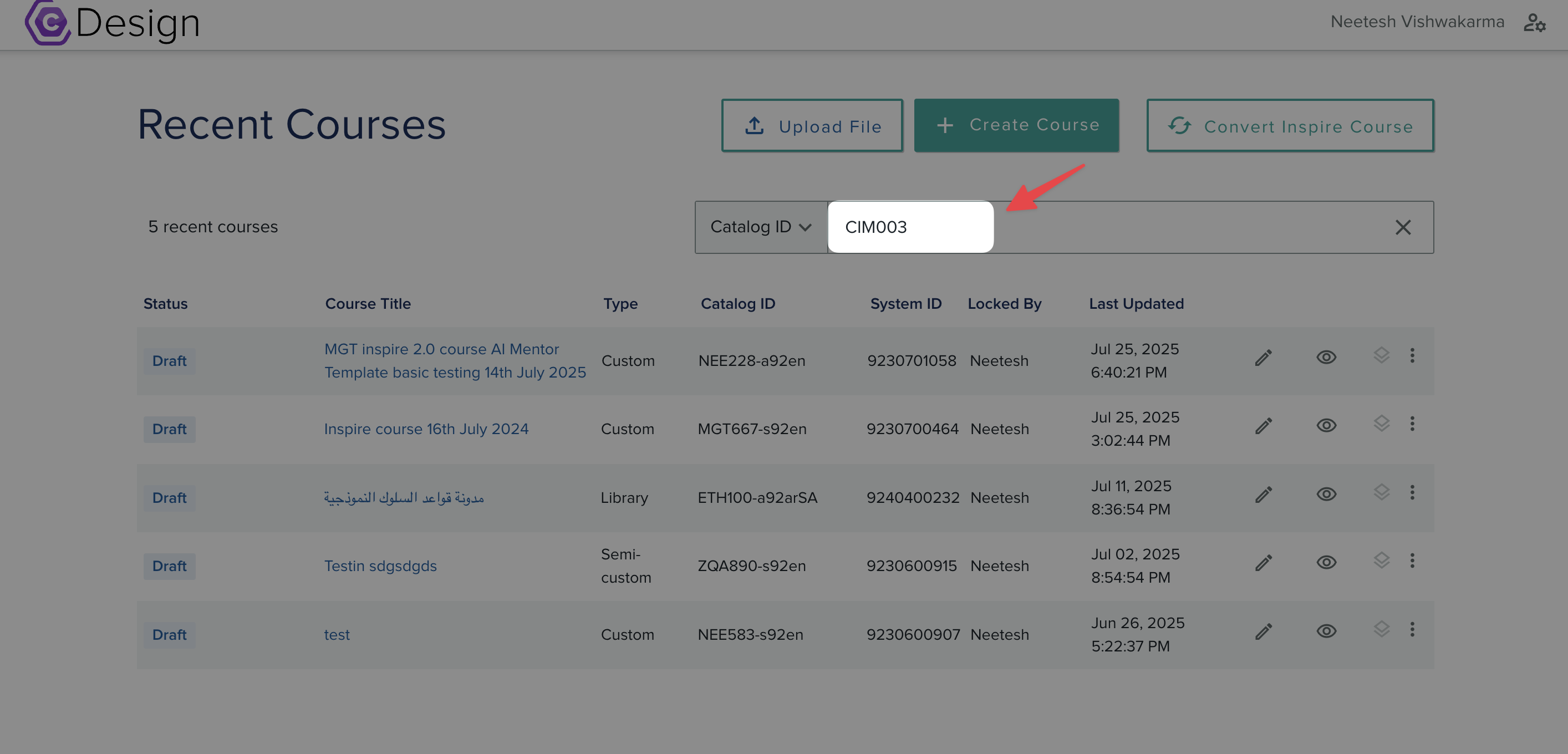
From the Course List landing page, search for the course you need the screen list from.
Step 3: Download XML
Once the course is shown:
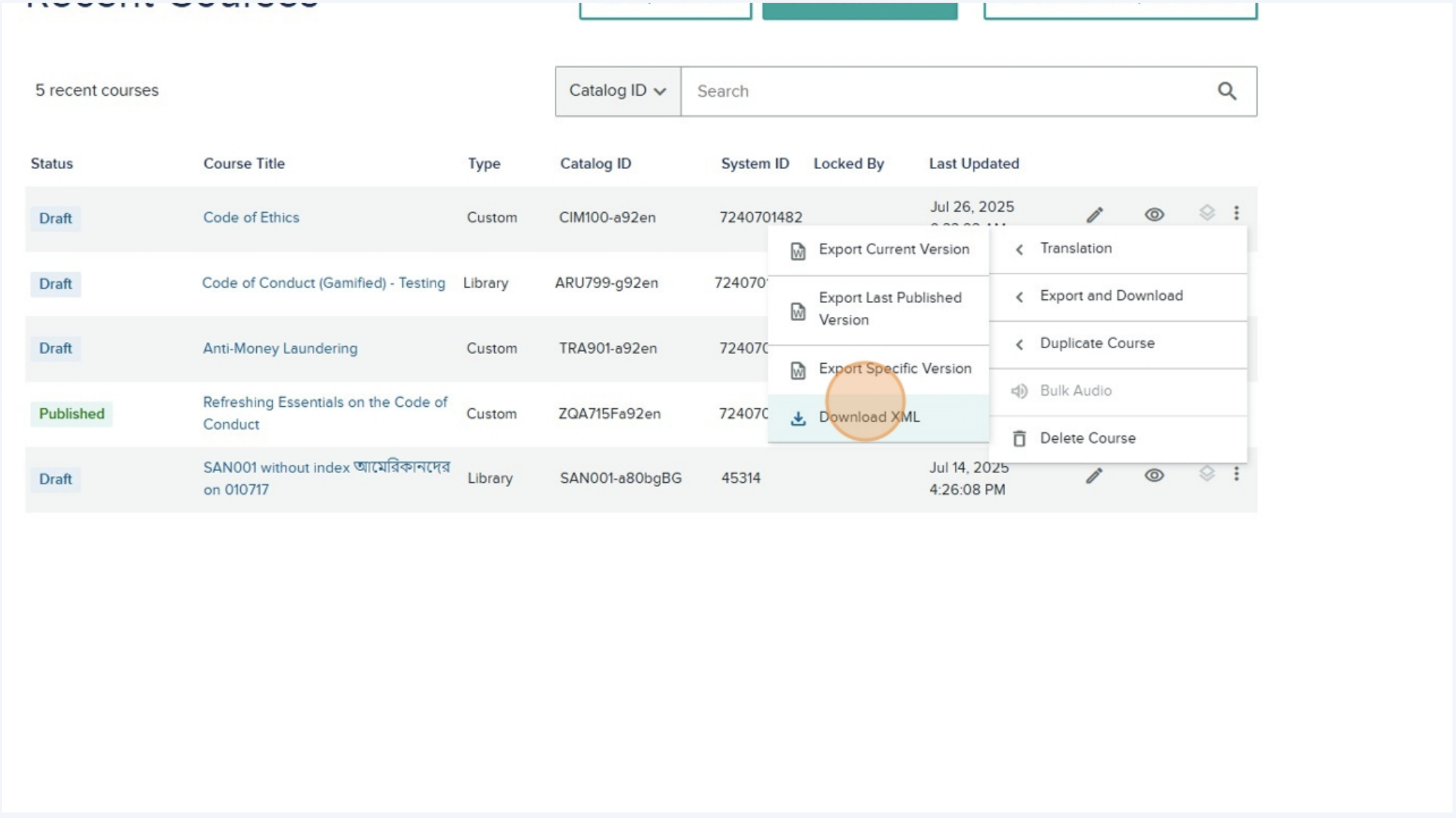
- Click the 3 Dots menu on the extreme right of the course list
- Rollover "Export and Download"
- Select "Download XML"
Step 4: Extract the XML File
Once downloaded you will find a zip file with the course code:
- Extract or navigate to the innermost folder
- You will find
Course.xml

Step 5: Upload to Screen Collator
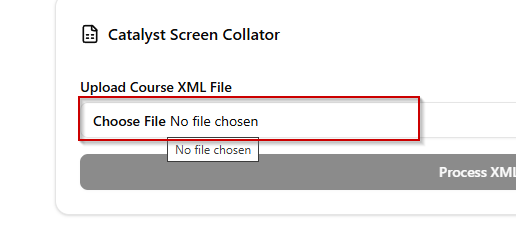
Use the file upload feature above to select your Course.xml file.
Step 6: Process and Download
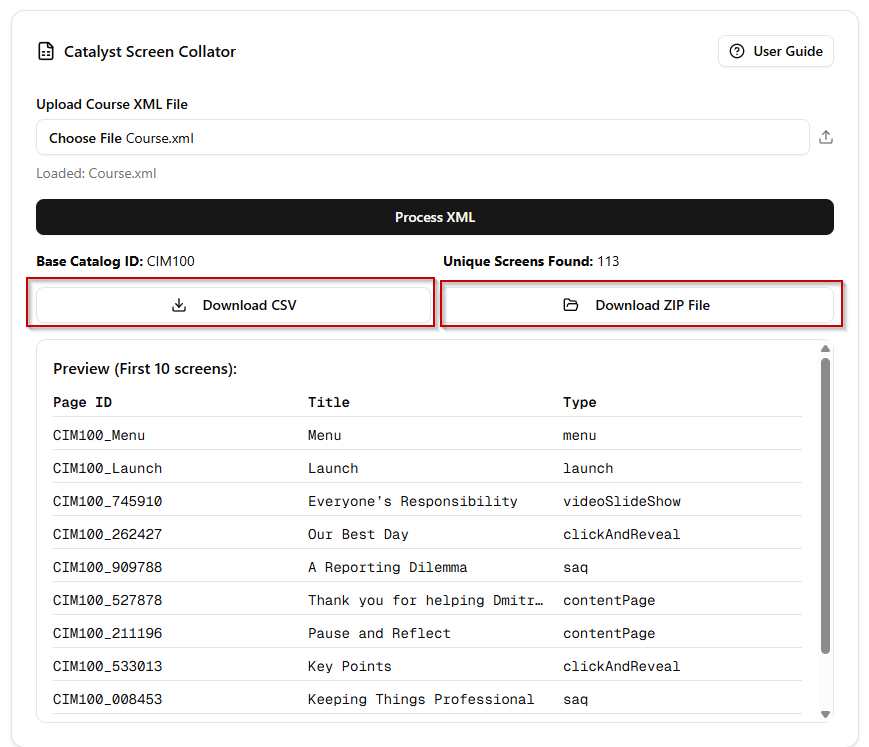
After processing, you'll get two downloadable files:
- CSV Spreadsheet: Contains the Screen Row List ready to copy and paste to the production server. You may need to stretch column widths to see all text.
- ZIP File: Contains the Course Folder Structure, ready to drag and drop to the Graphic Design Production folder.
Note:
On occasion, the ZIP file may not correctly create with the folders contained. If this happens, simply click the "Download ZIP File" button again to regenerate it.